Monday, February 10, 2014

Colors, colors, colors, and colors!

In CSS, we use colors in text, backgrounds, borders, underlines, on and on and on. The most common way to specify a color is by giving its RGB value. RGB stands for red, green, and blue. You guessed it! You basically say how much red, green, and blue you want in that color!

There are four ways to give RBG values:

rgb (255, 255, 255)
rgb (100%, 100%, 100%)
#FFFFFF

#FFF

These all describe the color white. Let's look at the first one:

rgb (255, 255, 255)

The higher the number, the more light. 255 is the highest number you can specify for each color, and the most light means white. But why is 255 the highest number? Well, 8 bits (a bit in a computer is a 1 or 0) are used for providing the red value, and 8 bits can have 256 numbers (28=256), so the numbers range from 0 to 255, 0 being no red light, 255 meaning the most red light. The same is for blue and green.

rgb (100%, 100%, 100%)

The RGB values here are just specified using percentages, 0% being no light, 100% being the most.


#FFFFFF

and

#FFF

Are in hexidecimal, which we'll go over tomorrow.
Sunday, February 9, 2014

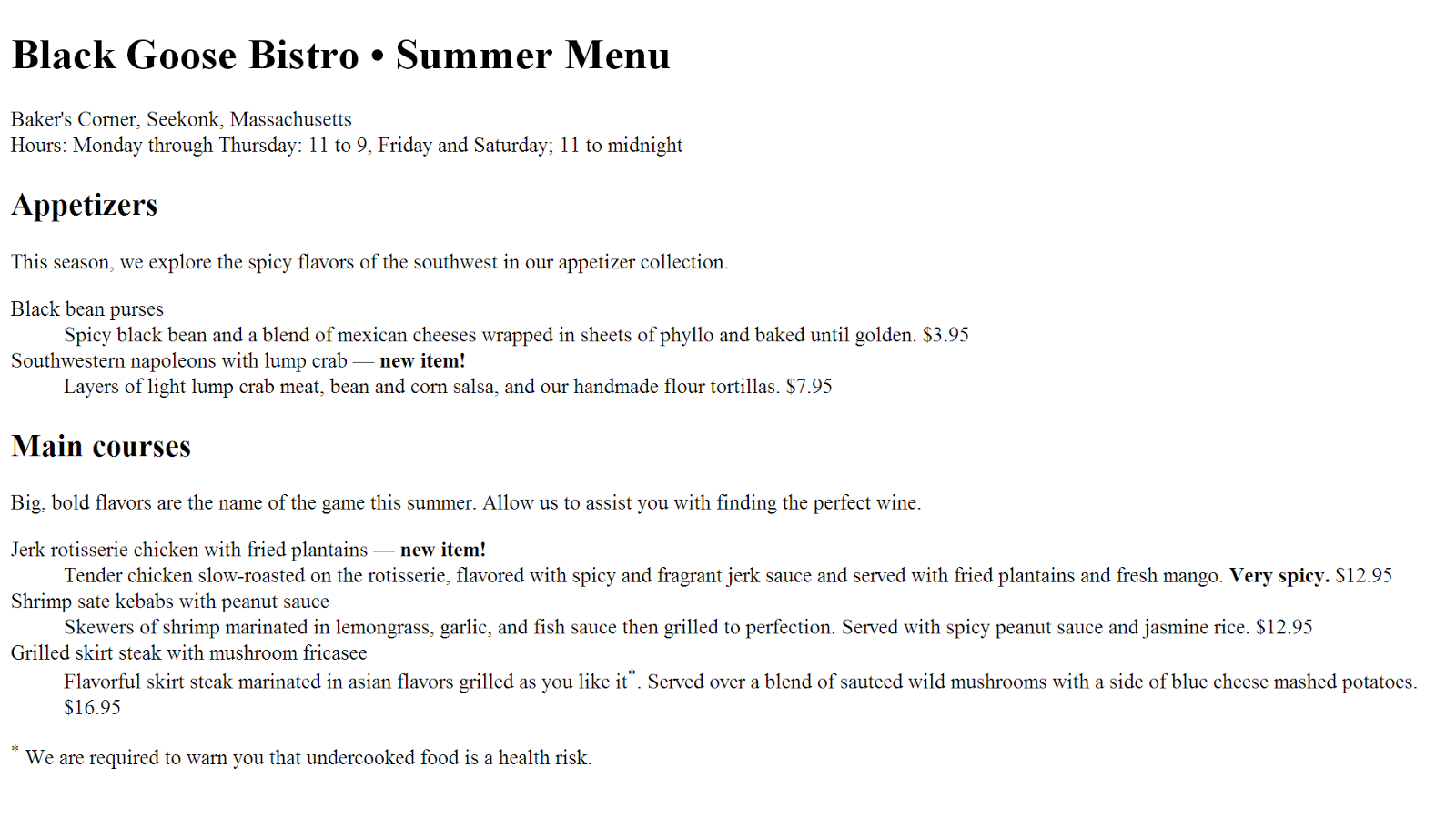
Black Goose Bistro | Summer Menu

I finished the exercise in the book which has you use CSS to transform this boring web page:

...into this!

This is the style sheet (embedded) that I used:

body {
    font-family: Georgia, serif;
    font-size: small;
    line-height: 175%;
    padding: 20px;
}
#header p {
    font-style: italic;
    color: gray;
}
h1 {
    font-size: 1.5em;
    color: purple;
}
h2 {
    font: bold 1em Georgia, serif;
    text-transform: uppercase;
    letter-spacing: 8px;
    color: purple;
}
dt {
    font-weight: bold;
}
.price {
    font-style: italic;
    font-family: Georgia, serif;
}
.label {
    font-weight: bold;
    font-variant: small-caps;
    font-style: normal;
}
strong {
    font-style: italic;
}
dt {
    font-weight: bold;
    color: olive;
}
dt strong {
    color: maroon;
}
p.warning, sup {
    font-size: x-small;
    color: red;
}
#header, h2, #appetizers p, #entrees p {
    text-align: center;
}
#appetizers p, #entrees p {
    font-style: italic;
}


I learned a lot about selectors: descendant (like dt strong ), ID (like #header ), and class (like .label ).


Tuesday, February 4, 2014

Fonts

9 more days left till that 30 day mark!

Do you remember seeing this from yesterday?

font-family: Verdana, sans-serif;

Well if you don't, I tell you. I used it in my style sheet to declare what kind of font I want the text in the body to be. However, why are there two values (Verdana and sans-serif)? And why is one capitalized and the other not?

Well, a browser can only display a font that the viewer has installed on his/her computer. The multiple values for the font are to give you a bit more control over what your viewer sees. In our example, if the viewer does not have the Verdana font, then we tell the browser to choose a font available from the font family sans-serif. See, if you didn't have sans-serif following Verdana, then the browser would just use the default font. And, what is a font family?

A font family is a category of styles. There are five main ones:

Font familyExamples
serifTimes New RomanGeorgia
sans-serifArialTrebuchet
monospaceCourierCourier New
cursiveComic SansApple Chancery
fantasyImpactWestern

See, font families should be lowercase, but a specific font should start with a capital letter.

Monday, February 3, 2014

Use CSS to Pretty the Font

I learned a lot about formatting text from the book today.

So this is what it looks like with just the HTML, using my browser's (Google Chrome) default styles:


And after adding fonts, sizes, colors, and special text effects like this:

<style type="text/css">
body {
    font-family: Verdana, sans-serif;
    font-size: big;
}
h1 {
    font-size: 1.5em;
    font-variant: small-caps;
}
h2 {
    font: bold 1.2em Georgia, serf;
}
h1, h2 {color: purple; }

dt {
    font-weight: bold;
}
strong {
    font-size: italic;
}
.warning { color: red; }
</style>


It now looks like this!


That's not a lot of difference, but it's a good start to beauty!

Sunday, February 2, 2014

CSS: Units!

Many values in styles sheets specify a size, length, width, etc. There are different units to spcify that:

Absolute units

You use these units if you mean something to be printed, because otherwise it doesn't really mean anything on a computer screen:
mm
millimeter
cm
centimeter
in
inch
pt
1/72 of an inch
pc
12 points

Relative units


I think these you should use more often to choose your font-size, etc:

em
unit relative to the current font size
ex
the height of a lowercase "x" in the font
px
a pixel, which is relative to the display resolution of the screen
%
percentage

I love making websites!

I love making websites! It's so cool how the HTML and CSS and pictures and text and links come all together to make a connection between the creator and the viewer....

CSS Zen Garden

This website, CSS Zen Garden, shows you how beautiful CSS can make webpages look. They all use the same HTML and content, but the different style sheets drastically change how it looks:


Have fun exploring more!